
What you can do in VS Code: a clear guide
A practical explainer for readers. Learn what VS Code can do, how to use it effectively, and common pitfalls to avoid.

VS Code is a code editor designed to be flexible and fast. It supports many programming languages, integrates with version control, and offers a wide range of extensions. This explainer walks through what you can do with it, why it matters for developers and news readers alike, and how to get started without overwhelming choices.
If you work with code or data, the right editor can save time and reduce errors. VS Code provides built-in tools that help with editing, debugging, and collaboration. The goal here is to show practical uses, common setups, and quick checks to keep your workflow smooth.
The guide follows a practical path: from basics to more advanced features, with concrete steps and cautionary notes. Each paragraph adds a usable takeaway to help a reader decide what to enable first and how to avoid common missteps.
- VS Code offers a fast, extensible code editing experience with built-in tools and a thriving extension ecosystem.
- Start simple: focus on essential extensions and a clean workspace, then add tools as needed.
- Use extensions and collaboration features to improve team productivity without sacrificing performance.
- The guide covers basics, extensions, collaboration, troubleshooting, and practical tips for effective use.
Basics of VS Code
What it is used for
VS Code is a lightweight yet capable editor that handles many file types and tasks. It focuses on speed, simplicity, and extensibility, making it suitable for quick edits as well as larger projects. qué hacer en España
The editor supports syntax highlighting, intelligent code completion, and refactoring helpers that many developers rely on daily.
Key features include the command palette, integrated terminal, and the marketplace for extensions that tailor the tool to your workflow.
- Open a file quickly with Ctrl/C
- Use the integrated terminal for commands
- Install essential extensions like linting and themes
- Customize shortcuts to suit your habits
- Use version control integration to stage changes
Getting started
Begin with a simple project folder to keep your workspace organized. Open VS Code, choose the folder, and explore the sidebar panels to locate files, search, and source control.
Try a basic workflow: edit a file, run a quick check, and use the terminal to run commands in the project context.
Create a small snippet or template to reuse common tasks, saving time on repetitive edits.
- Open a folder to start
- Run a quick lint or test
- Use snippets for repetition
- Leverage the terminal for context-aware commands
- Explore the Extensions view for core tools
Using extensions

Popular tools
Extensions add functionality without bloating the core editor. Popular tools focus on code quality, debugging, and collaboration. A useful resource on this topic: deportesnoticias.es noticias.
Choose extensions that fit your language and workflow to avoid conflicts between tools.
Regular updates can improve stability, but always test new plugins before adopting them long-term.
- Linting and formatting for consistency
- Debugger integrations for your language
- AI-assisted code completion with care
- Git integration and diff tools
- Theme and UI improvements
Configuring extensions
Configure extensions through the Extensions view and per-workspace settings. This allows developers to tailor features to specific projects without affecting other workspaces.
Some extensions offer per-language configuration, which helps keep behavior predictable across files.
Documenting what you enable helps teammates understand your setup.
- Set language-specific rules
- Use workspace settings for project-specific behavior
- Avoid global overrides that cause surprises
- Keep a changelog of updates and removals
Collaboration features
Sharing work
VS Code supports sharing through live sharing and version control. Live sharing allows real-time collaboration on code within the editor. A useful resource on this topic: promocionar tu empresa en España.
When working with others, define clear roles and expectations to prevent confusion during sessions.
Commit messages and branch naming should be descriptive to help teammates understand changes.
- Use live share for pair programming
- Commit often with meaningful messages
- Create branches for features or fixes
- Review changes with pull requests and feedback
| Feature | Approach | Impact |
|---|---|---|
| Live sharing | Real-time collaboration | Facilitates teamwork but may require stable connections |
| Remote development | Edit on server or container | Improves alignment with deployment environment |
| Extensions management | Selective vs broad install | Balance between functionality and performance |
Remote work
Remote development can be common, and VS Code supports connecting to remote servers and containers. This lets you edit code where it actually runs, reducing local setup time.
Ensure secure connections and proper credentials management to protect project data.
Test run environments locally when possible to avoid surprises after deployment.
- Connect to a remote host securely
- Use containers for consistent environments
- Synchronize extensions where helpful
- Keep sensitive data out of your editor config
Check the Output and Problems panels to identify errors and track down root causes.
Troubleshooting and tips

Common problems
Issues often involve extension conflicts, misconfigured settings, or permissions limitations. Start by disabling nonessential extensions to isolate the cause. A useful resource on this topic: ofertas de empleo en España.
Check the Output and Problems panels to identify errors and track down root causes.
Restarting the editor or reloading the window can sometimes resolve strange behavior.
- Disable suspicious extensions
- Review error messages carefully
- Test changes in a clean environment
- Restore default settings if needed
Best practices
Keep your editor up to date to receive security patches and new features. Use meaningful naming for configurations and workflows to help teammates understand your setup.
Document a standard workflow so colleagues can pick it up quickly in new projects.
Regularly prune unused extensions and clean caches to maintain speed.
- Update regularly
- Name configurations clearly
- Document standard workflows
- Remove unused extensions
Advanced features
IntelliSense and code navigation
The most visible benefit is intelligent code completion, which suggests variables, functions, and modules as you type. Use keyboard shortcuts to jump to definitions, references, and symbol outlines for faster comprehension. This saves time and helps you understand unfamiliar codebases without leaving the editor. necrológicas en España
- ☐ Enable IntelliSense for your primary language
- ☐ Configure language-specific settings for precision
- ☐ Practice go-to-definition to navigate quickly
- ☐ Keep a small, trusted extension set for stability
- Enable auto-complete for your language extension
- Use go-to-definition to explore the codebase
- Use hover information to preview types and docs
- Toggle symbol search to locate functions quickly
Integrated debugging
Debugging in VS Code lets you run code with breakpoints and inspect variables in real time. You can attach to running processes or launch new ones with a tailored launch configuration. This makes spotting logic errors more efficient than printing logs.
- Set breakpoints at relevant lines
- Use the debug console to inspect values
- Configure launch.json for your language
- Watch variables and call stacks as your code executes
Performance and resource usage

Managing extensions
Extensions enhance functionality but can slow the editor if misused. Start with a lean setup, then add only what you actively rely on. Periodically review extensions to remove ones you no longer use.
- Overloading with extensions slows startup and typing
- Ignoring updates that fix compatibility issues
- Installing large, multi-purpose extensions when a light option exists
- Disable or uninstall unused extensions
- Group extensions by task (coding, testing, theming)
- Use extension bisect to identify problematic add-ons
- Rely on built-in features before adding new tools
Workspace performance tips
Large workspaces with many files can slow operations like search and file indexing. Exclude folders that do not contribute to your current task, and adjust the files.exclude and search.exclude settings. This keeps VS Code responsive during daily use.
Security and privacy
Dependency and extension safety
Only install extensions from trusted sources and verify the publisher. Regularly review permission requests during installation. Limiting access reduces the risk of malicious code running in your environment.
- Use the Extensions view to check publisher and permissions
- Prefer built-in features over optional extras
- Review updates before upgrading extensions
- Disable auto-update for risky extensions
Workspace isolation
Keep workspaces isolated from personal data where possible. Use separate profiles or containers for different projects to avoid cross-contamination of settings and credentials. This habit supports safer testing and deployment.
Choosing a setup
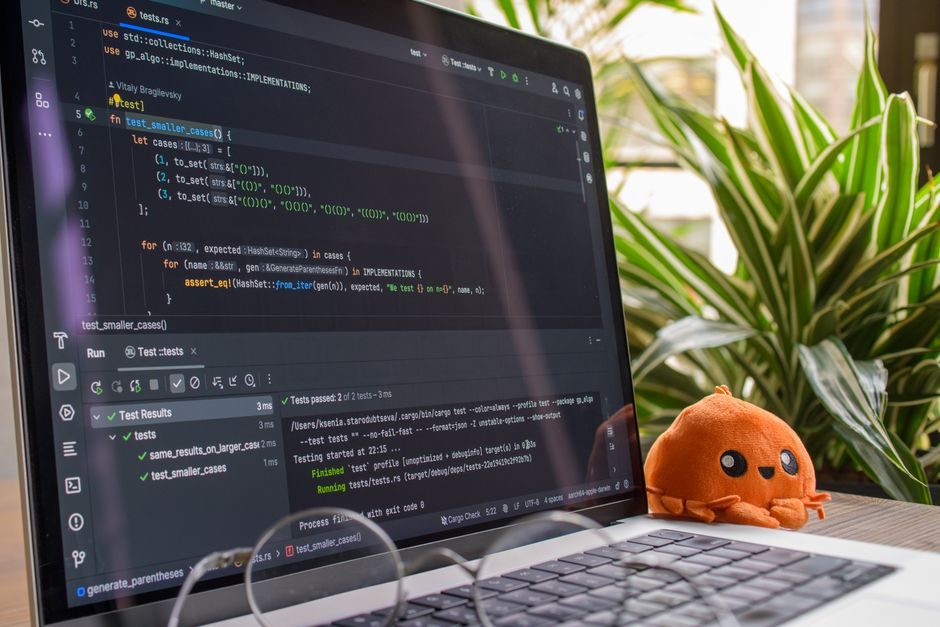
Configuring a productive environment
A productive setup centers on a quick editor, reliable terminal access, and clear project structure. Start with a minimal set of helpers and refine as your workflow stabilizes. A disciplined layout reduces friction during coding sessions.
- Pick a light theme for long sessions
- Configure a terminal integration with your shell
- Set up a project-specific .vscode folder
- Create a consistent keyboard shortcut scheme
Data management and backups
Version control is essential for collaboration and safety. Use a robust workflow with commits that describe changes clearly and regularly pushed to a remote repository. This practice protects progress against local issues.
Frequently asked questions
Can VS Code run on low-end hardware?Yes. It remains responsive with a lean extension set and careful workspace management. Turning off unnecessary features like spell checking or live previews can further improve performance on modest machines.
Is it safe to edit remote files directly?Editing remote files is common, but ensure you trust the remote source and use secure connections. Regular backups and a clear separation between local and remote work help prevent data loss.
How do I back up my VS Code settings?Export your settings by syncing via a cloud account or by copying the user settings file. Pairing with version control for dotfiles keeps configurations recoverable after changes or device switches.
What’s the best way to learn keyboard shortcuts?Start with the most frequent actions: quick open, command palette, and navigation. Gradually add shortcuts for debugging and refactoring as you grow comfortable.
Next steps for a tailored setup
With these choices, create a minimal baseline first. Add or remove extensions based on practical need, and tailor your settings to your project type. A steady, incremental approach keeps VS Code both powerful and approachable.
As a final step, document your preferred workflow in the project’s README or a private note. This makes it easier for teammates to adopt your setup and reduces friction for future work.
Add Stockport Wire as a preferred source on Google


